Recent Tweets

Showing posts with label Exposure. Show all posts

Introduction to Photography Exposure Terms – Part 4: Exposure

Written by Marc B

Last week we introduced beginners to ISO, and in previous week’s we introduced aperture and shutter speed. This week is our fourth and final part in our Introduction to Photography Exposure Terms blogs; we’re introducing exposure ie. how to bring it all together. 
The correct exposure for an image is a combination of shutter speed, aperture value, ISO setting and scene brightness, with each of these values having an effect on the exposure. 
If any of the values of these settings change, it is necessary to change one or more of the other values to make up for it. 
For example, where an exposure of 1/125th at f8 and 200 ISO is the correct exposure for the scene brightness, and you choose to change the aperture to f5.6, more light will pass through to the sensor so the image will now be over exposed.  To accommodate this change you will need to adjust another setting. 
Assuming you couldn’t change the light levels in the scene, options would be:

·           A faster shutter speed (in this case 1/250th).  This would halve the amount of light that the shutter would let in and therefore bring the exposure back to the original value, making up for the fact that the aperture is letting in double the light as it was originally.
·           Lower the ISO setting to 100 ISO.  This would lower the sensitivity of the sensor by half and would also make up for the original opening of the aperture being opened up.
·           A combination of both.
Below are some examples of photos taken at the correct exposure, then under exposed by two stops and over exposed by two stops.
This is the correct exposure according to the camera - a good overall exposure with some loss of detail in the brighter and darker areas.


This photo has been under exposed by two stop of light, resulting in a much darker image as compared to the image above. There is significant loss of image information in the darker and mid-toned areas.


The below photo has been over exposed by two stops, resulting in a much brighter image as compared to the first image. There is significant loss of detail in the light areas.
 
 
This diagram shows the relationship between all the values that need to be considered to get the exposure right on a camera.


The most important thing of course, is to experiment.  Get out of Auto mode; see what happens when you change the camera settings.  It costs nothing and you have everything to gain.  If you have any questions about any of the information you’ve learnt over the course of this Introduction to Photography Exposure Terms blog posts, feel free to contact us or ask in the comments section below.

We are always happy to talk cameras!

Introduction to Photography Exposure Terms – Part 3: ISO

By Marc B

Last week we introduced beginners to aperture, and the week before we wrote about shutter speed. This week (in Part 3 of the Introduction to Photography Exposure Terms), we’re introducing ISO or sensitivity.  Using these settings effectively, will help you achieve the right exposure and therefore the right look and feel for the photo you want to take. Remember to play around with these settings and experiment. You will learn with practice, so start shooting!

ISO or Sensitivity
The ISO setting on a DSLR is used to increase or decrease the sensor’s sensitivity to light.  Current ISO sensitivity ratings are based on the original sensitivities of film i.e 100, 200, 400, 800 etc.  The ability to change the ISO quickly is very useful, as it allows you to adjust your photo according to the available light in the area you are shooting. 
If the shutter speed is too slow and you have no alternative then you can increase the ISO which will allow you to have a faster shutter speed with the same amount of light.  Be aware that as you increase your ISO you also increase the appearance of ‘digital noise’ in your image. ‘Digital noise’ shows up as a messy multi-coloured haze across the image and is particularly noticeable in block areas of colour or shadow.  The ‘digital noise’ gets worse as you increase the ISO.
Typically the ISO has a range from 100 ISO up to 25600 (or more, depending on your camera). When talking about ‘general photography’, most photos are shot in the range of 100 to 1600 ISO.  The best ISO to choose depends on a number of variables. One of these variables is when the content of the image is the absolute first priority (eg a time critical photo for a news story where the technical result is not as important as ‘just getting the shot’). In this case, a high ISO is fine. It will ensure the photo has a better chance at being sharp.
 
Examples
The photo on the left shows a cropped area of an image shot with an ISO of 100.  It is very clean with good contrast and next to no digital noise.
The photo on the right was shot at almost exactly the same time but with the ISO set to 6400.  The difference is less contrast and a lot of ‘digital noise’.
 
The ISO setting can be a powerful tool when deciding on your exposure settings.  Adjusting the setting will allow you to move to a faster or slower shutter speed while keeping your aperture consistent. Keep in mind that as you increase the ISO you also increase the appearance of digital noise in your image with a corresponding decrease in image quality.
Experiment and have fun!
Next week, Part 4 of our ‘Introduction to Photography Exposure Terms’ will be on Exposure (bringing it all together).

Introduction to Photography Exposure Terms – Part 2: Aperture

By Marc B
Last week we introduced beginners to shutter speed. This week (in Part 2 of the Introduction to Photography Exposure Terms), we’re introducing aperture.  
Using these two settings effectively, along with ISO settings, are key factors in creating the type and style of photograph you want. Think about the outcome you want and adjust your settings. Experimentation is the best way to learn what works, and most importantly, what works for you. So start shooting!

Aperture

There are two reasons to adjust aperture settings. These are, to control the amount of light in your photographs, and creating your desired depth of field in each shot.
Light
The aperture or ‘f stop’ refers to the opening inside a lens that controls how much light passes through the lens to the sensor.  In most lenses this is variable so the photographer can control the light with a high degree of accuracy, choosing if they want a brighter or darker photograph.
The widest aperture of a lens is usually written on the front the lens, and is usually shown as, 1:2.8. This means that the largest aperture on the lens is f2.8. 
On some zoom lenses it may be expressed as something similar to, 1:3.5-4.6. This means that at the widest focal length of the lens the largest aperture is f3.5 and when you zoom all the way in, the largest aperture will be f4.6.  The different representation of the aperture on a zoom lens is because the lens itself absorbs light as it is extended or ‘zoomed in’.
Depth of Field
Controlling the area of apparent sharpness in an image is referred to as the depth-of-field (dof) in an image.  A large aperture (which is achieved by selecting a small number ie. f2.4) will give a shallow depth of field to an image, and a small aperture (which is achieved by selecting a large number ie. f22) will give a deep depth of field.
In the graphic below the relative sizes of the apertures are shown.  At f22 the image will have apparent sharpness from front to back.  At f1.8 the image will have a narrow band of sharpness, or a shallow depth of field.

Examples
The first image is shot with a large aperture of f2.8 and you can see how the depth of field drops off quickly and the image loses sharpness.
 
The second image was shot with a small aperture of f22 and the depth of field is now very deep and there is detail a lot further back into the image.


Keep in mind that if you want the entire image to be sharp you need to use a small aperture (choose a large ‘f stop’ number).  If you want to achieve a shallow depth of field, use a large aperture, such as f2.4 or f1.8.
Experiment and have fun!
Next week, Part 3 of our ‘Introduction to Photography Exposure Terms’ will be on ISO.

Introduction to Photo Exposure Terms - Part 1 - Shutter Speed

I recently presented at the Australian Art Show in Melbourne and Sydney, on a number of aspects of photography. The ‘Introduction to Photography Exposure Terms’ for beginners was popular, so I’ve turned it into a four part blog – Part 1: Shutter Speed, Part 2: Aperture, Part 3: ISO and Part 4: Exposure.
When you are a photography beginner, information is a great way to understand the basics and to help build some confidence. Of course, the best way to learn is to just get out there and get shooting!
What is a ‘stop’ of light?
A stop of light is either half or double the existing exposure.  So, when you add light (using the ‘+’ on the dial) you are making your photo brighter and when you reduce the light (using the ‘–‘ on the dial) you are making your photo darker.
If you under expose the image by one stop you are halving the amount of light that is hitting your sensor.  If you are over exposing by one stop then you are doubling the amount of light that is hitting your sensor. 
A number of cameras have a dial that has a +1, +2 and +3 with a corresponding -1, -2 and -3 on the same dial.  This is called the exposure compensation dial and allows the photographer to instantly over or under expose the photo. 
Command Dial
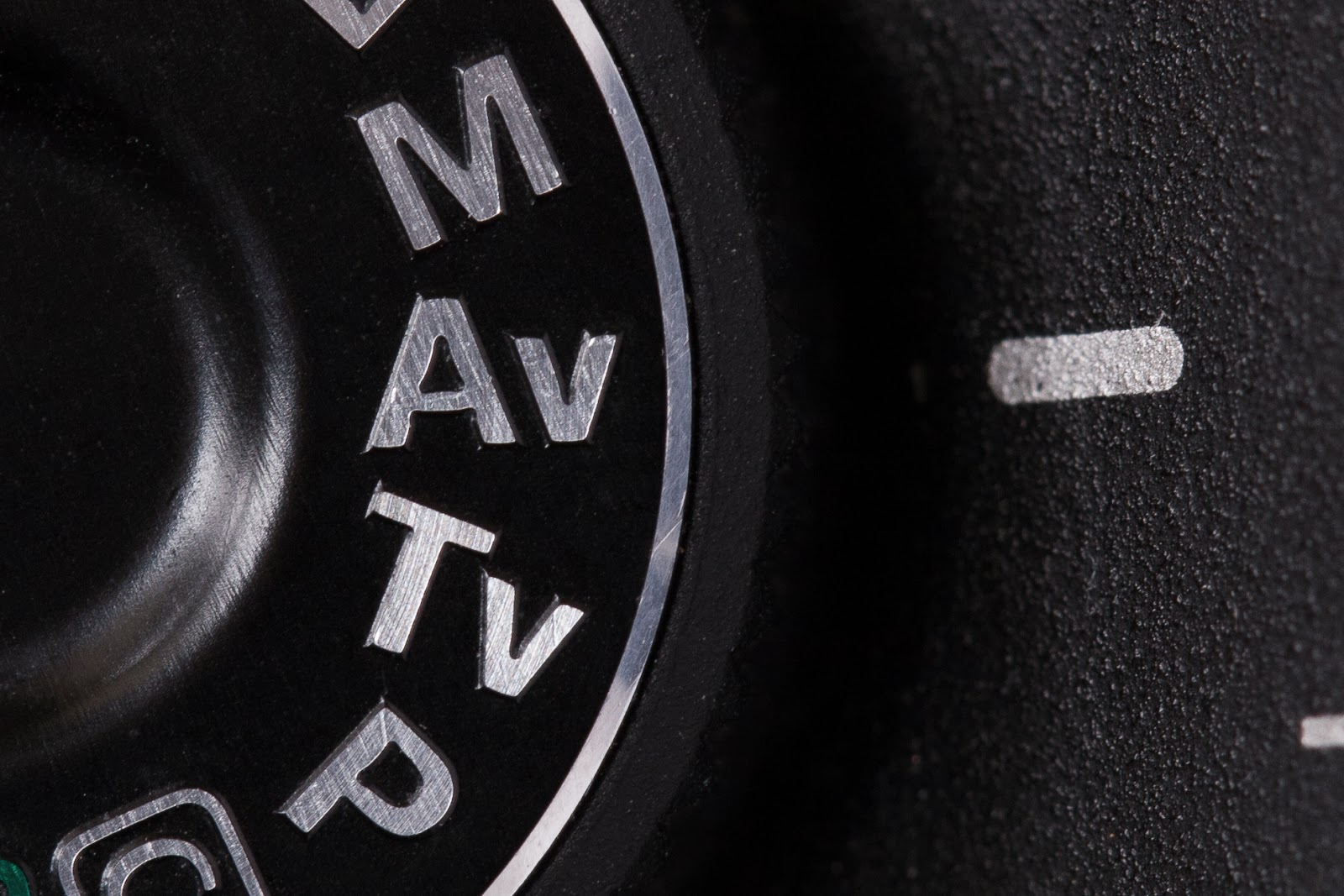
All DSLR cameras have a way of changing the three main exposure settings (shutter speed, aperture, ISO). The most common way is through a command dial which is found on one of the shoulders of the camera.  The photo here is from a standard command dial on a Canon camera. The letters stand for:

·      M – Full Manual control over shutter speed and aperture
·      AV – Control over the Aperture Value, in this mode the camera will automatically set the appropriate shutter speed to give the correct metered exposure based on whatever aperture you select
·      TV – This gives manual control over the Time Value (shutter speed) and the camera will again automatically select the correct aperture value depending on what shutter speed you select
·      P – This is the Program mode which automatically selects an aperture and shutter speed combination to give the correct exposure, but allows you to override this combination if you wish
 
Shutter Speed
Shutter speed refers to the length of time your shutter exposes the sensor of your digital camera.  The longer the shutter speed is, the longer your sensor is exposed.  Changing your shutter speed will do a couple of things:
·      Lengthening the shutter speed will let in more light
·      Shortening the shutter speed will let in less light
·      The slower the shutter speed, the more likely that any movement from the subject or the camera will show up in the image (and sometimes you may want this…)
·      If you have an extremely short shutter speed you can freeze movement
Shutter speed is generally written as ‘1/125’ (which means 125th of a second) but on a camera dial it will usually be shown as ‘125’.

Examples

The photo above was shot at 1/8000th of a second using high speed flash. It shows how a quick exposure can freeze movement and allow you to see details that you would otherwise miss. The shutter was too fast for any background detail to appear.
 

This photo is shot with the exact same set up but at a shutter speed of 1/20th of a second.  The results show the subject is blurred and has lost all fine detail and the photo no longer looks focused.  The background has detail because the shutter speed has stayed open long enough for the grass to appear. 

Next week, Part 2 of our ‘Introduction to Photography Exposure Terms’ will be on aperture.

Timelapse Photography

Shooting a time lapse is getting more and more popular.  It is a lot easier for the general public to produce time shifting videos and much cheaper than it was ten years ago. Time lapses combine all the challenges of still and moving photography in one and the results can be spectacular.  So what are you waiting for?  

What do you need for a time lapse shoot?

As a basic set up you should have a DSLR camera and lens, a sturdy tripod, a remote shutter release (preferably with an interval timer), a watch and a note pad.

The first decision is, of course, what to shoot.  A cloudy sky is great, as you can really get a sense of enhanced speed and movement and see what this method is capable of with an easily accessible subject (we all have a sky nearby). 

Set up your camera so you have primarily sky in the frame but make sure to include a static area as well like a mountain or some buildings as it can look a bit odd to see just moving clouds with nothing to let your eyes "rest" on within the finished video.

Take a few test shots just to get the exposure correct.  Remember to turn off the autofocus on your lens and also set your camera to manual mode so you don't get any variations in exposure as the clouds move across the frame.  Moving clouds can cause the exposure to change when set to auto.  This is very distracting in the final video, showing up as bright or dark frames. 

Next step is to work out how long you want the video to run for.  This is the maths part. Keep in mind that to ensure your video looks smooth you will need to have at the very least 16 images per second when you make your final movie. This is because the human eye cannot pick up that many pictures one after the other at 16 frames per second so it looks like a movie instead of several photos. Aim for 25 frames per second (fps) to get the smoothest result. This means that to get one second of video you need to shoot 25 photos. So if you want a 20 second clip you need to shoot 25 frames per second. This is a total of 500 images as 20 seconds X 25 frames per second (fps) = 500 images. You can work out how many frames you need by simply substituting the first number (how many seconds you want your movie to run for).  If maths isn't your strength then there are a few good free Apps that automatically calculate this while also allowing you change all the other parameters.

Now you need to work out your interval and shutter speed. Your interval is dependent s on the speed at which your scene is changing and also how much you want to speed up the scene. If a storm is rolling in and the clouds are moving quickly you will need to shoot at every second or quicker so that the end result doesn't look too "jumpy" i.e. there shouldn't be an obvious jump from one frame to the next.  If the clouds are moving slowly then reduce your interval to about 2 seconds or longer.

When choosing your shutter speed, the golden rule is that your shutter speed should be the same length as your interval time.  So if your interval is one photo per second, your shutter should be open for 1 second every time as well (this is often referred to as a 180 degree shutter).   Longer shutter speeds are also better because there is less chance of a darker or lighter frame due to slight variations in the shutter speed from one frame to the next with a quicker shutter speed.  

Make sure your memory card is empty, as nothing is more frustrating than getting halfway through your shoot and having to change cards as it equates to a dropped frame rate in the final video due to the frames missed while you changed cards.

Should you shoot RAW or JPEG?  

It depends on the amount of post processing you might need to do. I reduce the size of RAW files on my 5D to about 3 megapixels. Remember that HD video is about 2 megapixels. They take up less space on the memory card so there is less chance of running out of space halfway through the shoot. 

Now is when you need an interval timer.  I use the HahnelGiga T Pro wireless timer remote. I pick the interval required and set it on continuous release so that it will keep shooting at the chosen interval until I manually stop it. 

Your final checklist before you head out should include additional charged batteries, empty memory cards and the equipment listed at the start of this article.  Also take along anything you would normally use when shooting landscapes because essentially that’s what you’re doing with the only difference being that this capture moves.

Below is a video made according to the instructions provided here.  It was shot for 25 minutes as the sun set using a Giga T Pro interval timer.  The video is playing back at 25 frames per second, so for every second of video there are 25 still photos used.  The photographs were taken every 4 seconds with an exposure time of 2 seconds per frame.


Winter Tips: How to shoot in the snow


With winter well underway we thought it was time to put a few tips together for anyone looking to go out and shoot in the colder months.  If you get a chance to take photos in the snow (for the lucky few that actually get snow in this big old country of ours), there are a few things to keep in mind.  Below are a handful of things I discovered while walking the streets of Europe during the coldest months and dealing with snow, sleet and rain.
The first thing anyone will tell you is that keeping your camera’s batteries warm is a necessity. This is spot-on as the cold temperatures can dramatically reduce the performance of your batteries.  When possible, keep your batteries housed within an internal pocket so that they are warm and retain their charge better.  Make sure they are fully charged at the start of each shoot and have a spare one handy as batteries lose charge quicker in cold weather.  Always be ready to shoot!
Pay careful attention to your exposure.  Some scenes that are predominantly white may cause confusion to your exposure metering system and attempt to underexpose the photo, giving a greyish look to the snow instead of a crisp white.  If this is happening you can either set your exposure manually to get the result you want or overexpose the photo by 1 to 1.5 stops on the exposure recommended by your camera.
Be mindful of where you step to ensure you don't leave footprints throughout the scene.  An ideal solution is to wake up and trek out early before the snow begins to melt and before people walk around, leaving footprints everywhere.  I was lucky to be in Hyde Park, London where it had snowed the night before and made it to the park first thing in the morning.  I captured some great shots of the park while it was almost deserted with a thick layer of snow on everything. By around 10:30am it had reduced to a snowy mush and looked decidedly less photogenic.
If you choose to shoot in JPEG then make sure your white balance is set to daylight so the snow will appear white.  If you know how to set a manual white balance in your camera then this could also be done using a photo of the snow although in theory this should give you the same white balance setting as the 'daylight' option.   If you shoot in RAW then disregard this advice as you will have a colour balance option during your RAW conversion.  I always shoot in RAW as it provides maximum control during post-processing. 
If your camera has no weather seals then take precautions to keep it dry.  My Canon 5D MKII DSLR is weather sealed and has survived through rain, snow, sleet, and hail with zero adverse effects.  I hate passing on photo opportunities and some of my best shots were taken during difficult weather scenarios.  Make sure you check for snow or water drops on your lens that will show up in the photo.  If moisture is present, ensure you dry it as soon as possible!  If your camera is not weather sealed then be extra cautious when water is present as cameras and water generally don't go well together and water damage is not covered under manufacturer’s warranty.
If you wish to shoot portraits in the snow then consider encouraging the subject to wear a bright, bold colour in order to draw attention to them so that they don't get 'lost' in the frame.  Red generally works quite well.
Dress appropriately for the weather. Think warm.  If it’s going to be windy then keep this in mind as the temperature can drop rapidly due to the wind chill factor.  One of the coldest days for me was in Edinburgh when the temperature was approximately 2oC but then the wind picked up and it felt like I was in a deep freeze with the wind punching through every tiny gap in my clothing. I don't normally wear gloves while shooting but on occasion it has been necessary. This is when being experienced with your camera and knowing where all the buttons are is handy so that when you can only feel them with limited tactile feedback, the task is no challenge for you.
Acclimatise your camera when you go back inside.  I keep mine safely housed in my camera bag and under no circumstance will I ever remove the lens from the body until I am certain that the camera has reached the room’s ambient temperature which typically takes at least half an hour.  If you don't take this precaution then condensation may form inside your camera which can only lead to undesirable outcomes.
Finally, as with any form of photography, be on the lookout for any kind of photo that may present itself from macro to the grand-vista.  
If you do get a chance to shoot some winter photos then share your pics on this blog or with our Facebook community for live feedback and prize giveaways! We LOVE seeing photos taken by our talented customers and community fans!

Good luck and stay warm this winter! 

 - Marc @ DCW

Portrait Photography: A Beginner's Guide

This blog post will guide you through all the necessary steps to recreate successful studio lighting using Canon flashguns that can be set up in almost any situation, though the same setup may be achieved with other brands in a similar fashion.  Shooting in a studio or similar scenario is an excellent way to learn how light can affect your photos.  These lessons can be used in any photographic situation, be it a highly controlled studio setup or shooting with natural light in an uncontrolled environment.


DCW's Portrait Photography Demo at Sydney Morning Herald's Photo1440 Workshop


The following are some general rules for lighting -

1) The larger the light source when compared to the subject, the softer the quality of the light that falls on the subject. This is because the larger light source wraps around the subject, softening the edge of shadows.  As the light source gets smaller you’ll notice the shadow edges become more defined.

Moving a large light source closer to the subject also has the effect of softening the shadows while moving the light away makes the edge of the shadow sharper and more defined.        

If you diffuse a light source, the light scatters and results in a softened quality as the diffuser essentially becomes the light source. For example - On a bright, sunny day the shadows are strongly defined as the light source is far away i.e. the sun. If passing clouds then block the sun, the light will soften as it becomes diffused by the clouds, thus simultaneously drawing the light source closer as the clouds now become the source.  So you can look at it two ways - the hard light source is now diffused OR the light source is now very large and close.

2) Bouncing a hard light source off a wall onto your subject effectively creates a larger light source.

This occurs by making the wall a light source.  As the wall is much larger than the size of the flash, the light also becomes a lot softer.  This requires a greater power output from your flash as some light is lost from the wall and the light also has to travel further to reach the subject.  Be aware of the colour of the wall as the light from your flash will change to whatever colour the wall is i.e. red wall equals red light, green wall equals green light, etc.

3) Front lighting diminishes texture, side lighting (from any direction) emphasizes texture and rear lighting highlights the shape of the subject.

The direction of a light source has a big affect on the appearance of texture in an image. Lighting from the side will increase the appearance of texture on surfaces while light hitting the subject from the camera position will flatten the texture in an image. To achieve this, the light should be un-diffused as a diffused light source will soften the shadows and may even eliminate the texture. Light from behind the subject highlights the shape of the subject; a prime example of this would be a silhouette.

Some general portrait photography tips -

1) A messy background will interfere with a good portrait. That is unless the background helps to tell the story of the portrait.  For example - a violinist may have a portrait taken with their violin in the background to tell the viewer more about the subject.  If the background doesn’t assist the story then blur it out as much as you can with a large aperture or if possible, get rid of any distracting elements completely.  There’s nothing flattering about seeing images of people with trees sprouting from their heads.  

2) Have the lighting set up and the camera ready to go before your subject arrives so that they won’t have to wait for you upon arrival.
3) In portrait photography the primary area of interest and focus is almost always the eyes.  As humans, that’s where we look first. Because of this it’s critical that the eyes are in focus.

​4) The direction of a subject’s eyes is also very important in a portrait. Having the subject return the gaze of the photographer can give the viewer a sense of connection with the subject.  An alternative is to have your subject looking at someone or something within the shot, which sets up a story in the image.  The most obvious one is a mother with her child looking at each other.  If you imagine that same photo with the mother looking directly at the camera and not her baby, the image immediately shifts to a completely different vibe.
​5) Portraits are most commonly taken at the same eye level as the subject. Playing around with the angle can give a different perspective to the portrait. For example, shooting down on your subject from above, or up at them from ground level can change the viewer’s perceptions of the inherent power of the subject.

​6) Firing a number of shots at a time can either give you a series of images that work together or it can help you achieve one image that is natural. This is useful when you’re photographing somebody engaged in an activity or when working with kids.
Lighting Setup


The following is a list of steps to recreate our portrait set up.  In this example we used 3 Canon 600EX RT flashes, 2 60x60 Mircopro soft boxes and a Honl light shaper (for the hair light).

Step One.

Flash 1 is set up with the soft box at a 45 degree angle to the subject.  The light in this photo is softer than a direct flash due to the soft box and off-centre position which creates a nice modelling effect upon our subject.  This light is referred to as the key light or main light as it is responsible for the primary lighting effect in the shot.  At this point the line between the lit part and the shadow is nice and gradual but the shadow area is quite dark. I set this flash at +1/3 exposure compensation to make the image a bit brighter.

Step Two.

To lighten this area we require a second light from the opposite side of the subject.  This light needs to be less powerful than the key light so it doesn't eliminate the modelling effect the shadow creates.  I set the power of this light to half of the power of the key light and use the same soft box on it.  This will lighten the shadows to even out the contrast while still keeping the shadow areas present but to a lesser degree.  I set this light at -2/3 exposure compensation.

Step Three.

Now we need to add a bit more light to the hair of our subject to create a bit of shape.  For this I put a Honhl flash bender onto the third flash.  I’ve put it into the shape of a snoot, which is simply a tube made to funnel light into a specific area of a photograph.  In this case I want the light to fall onto the hair of our subject to highlight it and give some definition and shape to the subject. To do this I simply aim the snoot towards the subject directly from the other side of the key light.  Also make sure you have a bit of height so you are shooting the light at more of a downward angle.  This has created a highlight effect that helps the image to pop and adds a bit more depth.  This light is set to +/-0 exposure compensation to make the highlights stand out when compared to the second flash.

So there you have it. A simple, quick technique for studio lighting to get you started.  Off-camera flash is a great way to begin learning about how different angles and quality of light can change the look of the subject.  Once you are confident in using flash then it is easier to know how the quality of existing light will look in your photos.  Using flash is also a really good way to train yourself to understand how different lighting can affect the photo you take and also trains you to identify lighting conditions and ways you can manipulate it to obtain a good result.